What you get
Readers can open the link during its access window. After the deadline, they see an unavailable notice instead of the content.
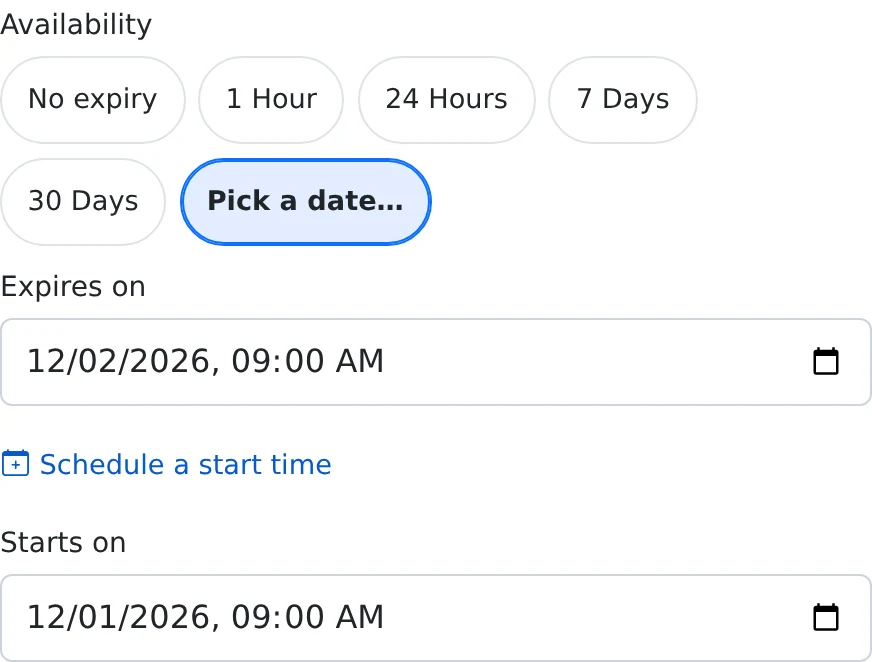
How to use it
- Open Share on the saved text paste.
- Choose Anyone with the link or Needs a code, then expand More options.
- Under Availability, select 1 Hour, 24 Hours, 7 Days, or 30 Days. Choose Pick a date for a custom deadline.
- Check the expiry in the summary and save the share settings.
- Send the resulting link. To extend access later, reopen Share and change the expiry or select No expiry.
A clear deadline for temporary information
Use a one-hour paste for a short handoff, a seven-day paste for event instructions, or a custom date for material that should stop being accessible after a project review. The preset calculates a deadline; readers do not each get a fresh timer when they open the link.
For example, a paste expiring on Friday at 17:00 remains available before that cutoff and is refused after it. The recipient sees that the access period has ended.
Expiry stops access; it does not delete your saved paste
The saved content remains in the owner’s dashboard. You can reopen Share and remove or extend the deadline to make it accessible again. Choose Delete from the dashboard if you want to remove the stored item.
Expiry cannot remove copies already made by recipients. It is also different from Burn after reading, which disables the share after an eligible read instead of waiting for a clock deadline.
Combine an end time with a start time
Select Schedule a start time when the link should open later as well as close at a deadline. Keep the end later than the start and review the date and time shown before saving. Recipients opening early see a sealed page with a countdown.
Things to know
- Choose No expiry when you want no time-based expiry; the other selected access rules still apply.
- Guest pastes created on the homepage start with a fixed 24-hour public window. Account share settings provide the adjustable options shown here.