What you get
Early visitors see a sealed page. The content becomes accessible when the configured start time arrives.
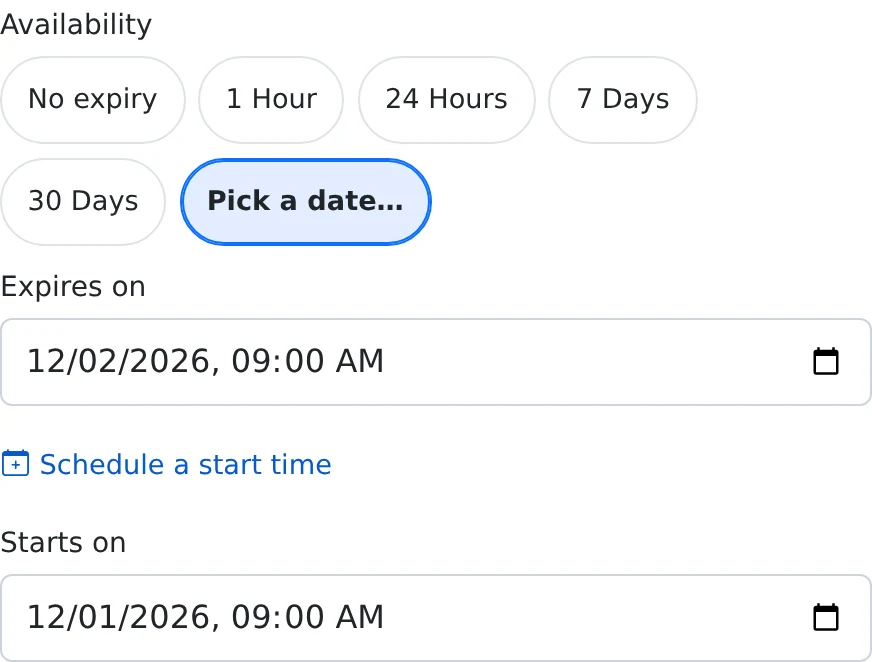
How to use it
- Create the content and open its Share settings.
- Choose a sharing mode and expand More options.
- In Availability, select Schedule a start time and enter the intended date and time.
- Choose an expiry if needed, ensuring it falls after the start, then save and distribute the link.
Prepare now, reveal later
Use a scheduled share for workshop instructions, a puzzle solution, or a note to your future self. You can give recipients the link in advance. Opening it before the start does not display the paste body; visitors see the sealed countdown page.
This is a fixed time rule. You do not need to return to press a publish button at the deadline. Access is checked when a visitor opens the page.
Choose the right type of reveal
Schedule a start time opens content at a date you pick. Reveal if I go quiet uses a different condition: it waits for an inactivity period after your last check-in. Use the scheduled option for a planned event and the inactivity option only when that behavior is intentional.
A scheduled start does not send the link to your recipients. You still need to distribute it yourself. After the start, all other configured rules continue to apply, including an access code or an end date.
Things to know
- Include the intended opening time in your message to recipients.
- Check the saved settings and countdown before publishing an event announcement.