What you get
You get a saved item in your dashboard that you can copy later, find on another device, or choose to share.
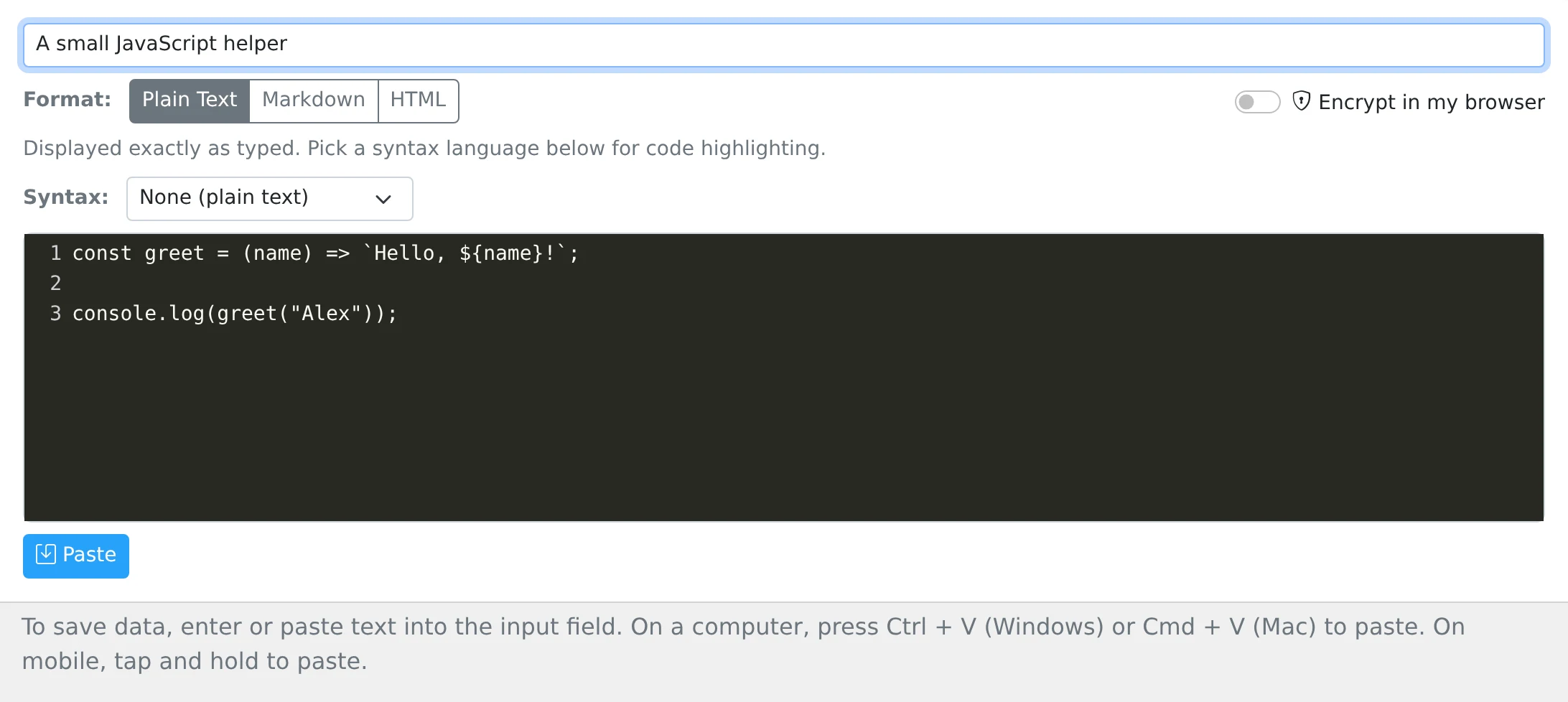
How to use it
- Sign in and open My pastes.
- Use the quick input for plain text, or open the Text tab for the full editor.
- Add an optional title. For code, keep Plain text selected and choose the matching syntax language.
- Enter your content and save it. Use the item’s Share button when you are ready to give someone access.
A library you can return to
Save a support response, a configuration example, a recipe, or notes from a call. A descriptive title makes the item easier to recognize later. Your account dashboard is available after signing in on another device; it is not an automatic sync of everything you copy on your computer.
New account pastes are private until you share them. Saving a snippet and publishing a link are separate actions, so you can build your personal library before deciding what other people should see.
Code that stays readable
The syntax selector includes languages such as JavaScript, Python, PHP, SQL, Bash, and JSON. Highlighting makes source code easier to read in the editor and on its public page; it does not run the code.
Use Plain text without a syntax language for ordinary notes. Choose Markdown or HTML when you want formatted reading instead of a literal snippet. Optional browser encryption changes this behavior: encrypted bodies are treated as plain text rather than rendered or highlighted on the server.
Things to know
- Choose a specific title such as “Staging database connection example” instead of “Notes”.
- Click a saved text item to copy its content, then paste it into the destination app.