What you get
You can reuse existing content and organize a group of items without opening each one separately.
How to use it
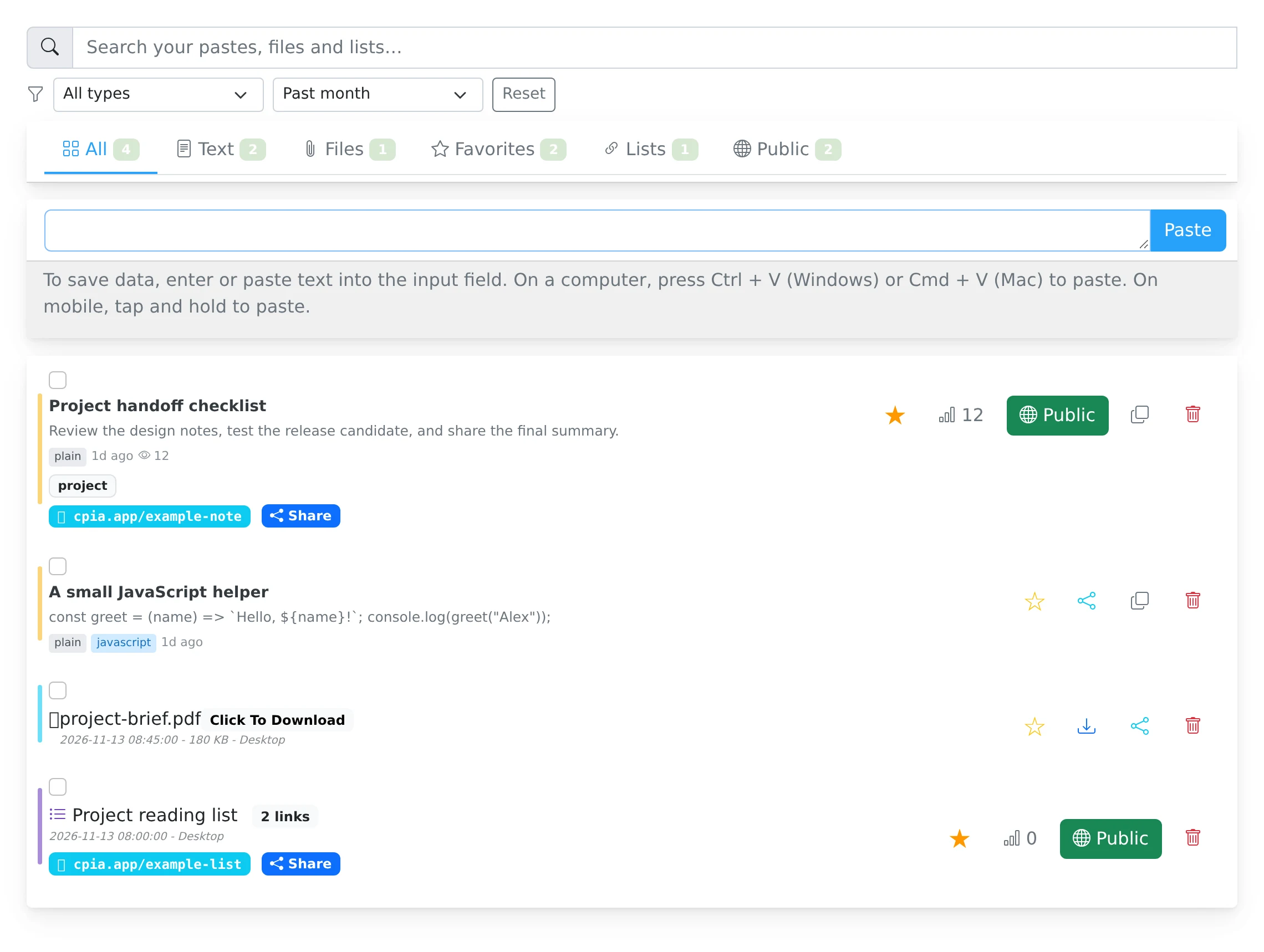
- Click a saved text item to copy its content to your clipboard.
- Use the Fork button on an ordinary text item when you want a separate saved copy.
- Select item checkboxes to reveal the bulk action bar.
- Choose Make public, Make private, or Delete for the selection, and check the result before continuing.
Clipboard copy and Fork serve different purposes
Copying places the text in your device’s clipboard so you can paste it into another application. It does not create a new saved item. Fork creates a separate item in your account, with its own identity and sharing choices.
Use Fork for an ordinary text template you want to reuse. It counts toward the paste allowance. Do not assume that it duplicates uploaded file data, link-list metadata, or an encrypted-key workflow. For those content types, create a new item using the appropriate editor.
Manage visibility in a group
Bulk Make private removes public sharing for selected owned items while keeping them in your library. Bulk Make public applies the basic public-sharing workflow; use individual Share settings for access codes, time limits, and other detailed controls.
Delete removes the selected saved items. File deletion also removes the stored upload. Use Make private when your goal is to stop public access while keeping your own copy. Review the selection count before using Delete.
Updating content through integrations
The API supports updating a paste through its PATCH endpoint. The current dashboard does not expose a full text-editing and version-history interface, so do not expect an Edit or Restore button in every item row. For browser-only changes, create a revised paste and share the new item.
Things to know
- Copy the content you want to keep before deleting an item.
- Inspect advanced sharing settings individually after making broad visibility changes.