What you get
You get a public page at your @handle that visitors can use as a starting point for your work and resources.
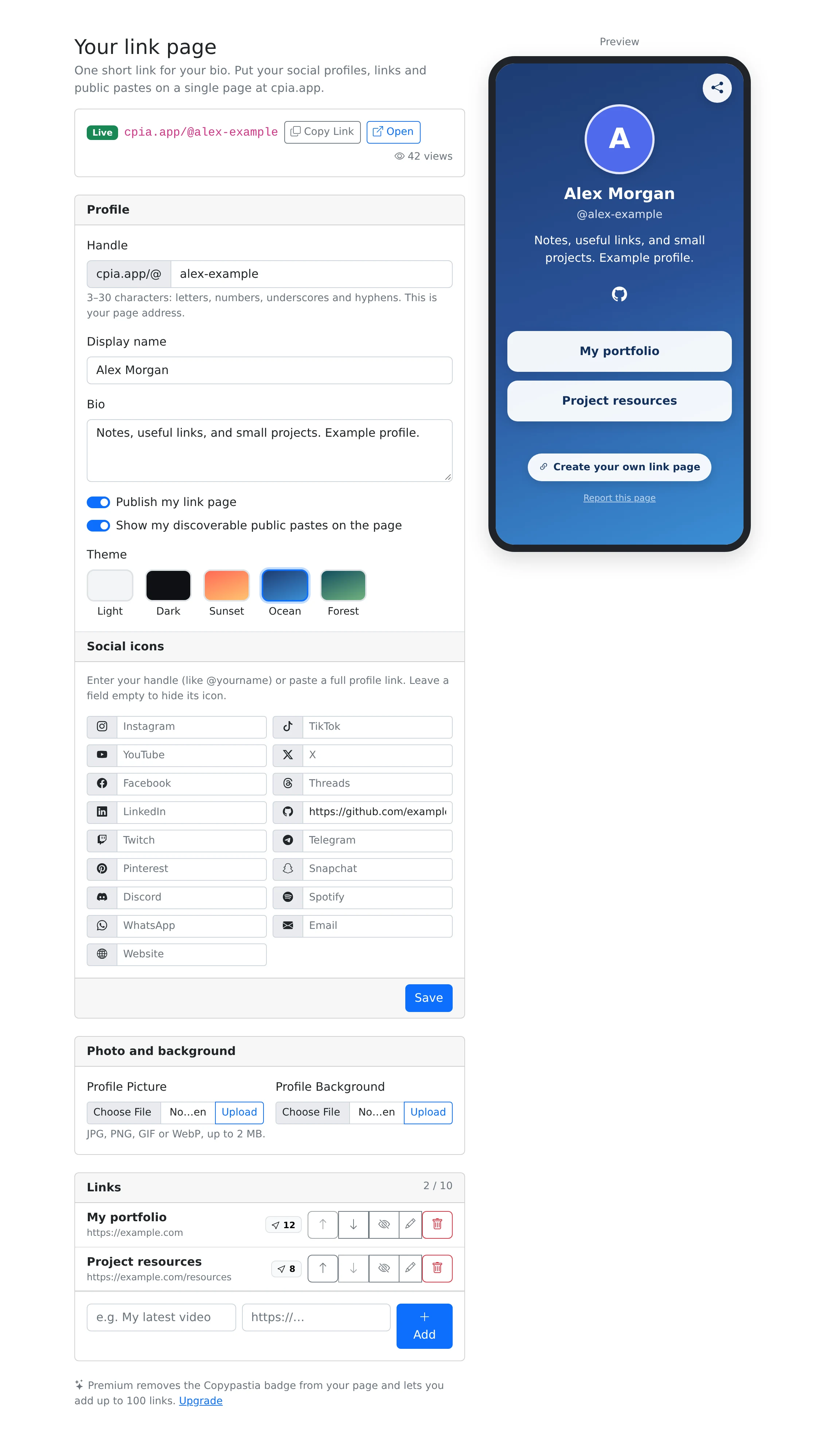
How to use it
- Open My links from your account.
- Choose an available handle, enter your display name and bio, and select a theme.
- Add social profiles and named links, then move links into the order you want.
- Enable the public profile setting and decide whether to show eligible public pastes.
- Save the settings and open the public page to review it as a visitor.
A page that introduces you
Use the page for a portfolio, an event, or a set of resources you want people to find from one address. A readable display name and a short bio help visitors understand what the links are for. Account profile settings also provide avatar and background-image controls.
A handle must be available and valid before the public page can be enabled. Changing the handle changes the address people use, so update any external profiles or printed materials that point to the old one.
Keep the important links visible
Each link has a title and destination. You can update it, hide it, delete it, or move it up and down. Hide is useful for a temporary campaign you may want to show again later.
The public-paste option is separate from your private library. It is intended to show eligible public material, not expose everything saved in the account. Review both the profile’s visibility and the sharing settings of content you attach.
Things to know
- Use descriptive button text such as “Read the workshop notes” rather than “Click here”.
- Preview the page on a phone; link pages are often opened from social profiles.